How to Play RF Online Next on PC (and Mobile)
Quick facts
| Platforms | PC (native Windows client), Android (Google Play), iOS (App Store) |
|---|---|
| Cross-play | Yes — cross-play and cross-progression on one Netmarble account |
| Install size | ~70 GB+ region (estimated — verify in-client) |
| Minimum specs (estimated) | Windows 10 64-bit · Core i5 (8th gen) / Ryzen 5 · 8 GB RAM · GTX 1050 Ti / RX 560 · ~70 GB storage |
| Recommended specs (estimated) | Core i7 / Ryzen 7 · 16 GB RAM · RTX 3060 or better · NVMe SSD |
Where to download it
There is one safe source per platform. Get the PC client from the official RF Online Next page on Netmarble's website, the Android build from Google Play, and the iOS build from the App Store. The reason to care about this with a Netmarble title is the account layer: your progress lives on the Netmarble account you sign in with, not on the device, so the only thing that matters is that you downloaded a legitimate client and logged into the right account. Skip the repacked installers and APK mirrors that show up first for a launch-week game — they cost you the cross-progression that is the whole point.
PC: native client vs emulator
Install the native Windows client. Because Netmarble shipped a real PC build, an Android emulator is the wrong tool here — emulators like BlueStacks, MuMuPlayer, LDPlayer, and GameLoop exist to run the mobile build on a desktop, and you do not need that when the game already has a desktop version. The native client gives you direct keyboard-and-mouse input and the GPU talking to the game instead of through an emulated Android layer, which is exactly what an Unreal Engine 5 game with 450-player battles needs. Emulators are worth naming only as a fallback: if your machine refuses to run the PC client for some reason, the mobile build under an emulator will still get you in. Reach for it last, not first.
System requirements
Netmarble has not published official PC requirements, so every number below is a community estimate built from the Unreal Engine 5 build and the scale of its 450-player fights. Treat them as a planning floor, not a guarantee, and verify against your own client once you install. The single specific that holds up across every estimate is storage: this is a large install, so an SSD with real headroom is the part you should not skimp on.
- Minimum (estimated, verify): Windows 10 64-bit, Intel Core i5 (8th gen) or Ryzen 5, 8 GB RAM, GTX 1050 Ti / RX 560, ~70 GB storage, broadband under ~100 ms ping.
- Recommended (estimated, verify): Core i7 or Ryzen 7, 16 GB RAM, RTX 3060 or better, on an NVMe SSD.
If your rig sits at the minimum line, the 450-player war zones are where it will struggle first, not the open-world grind — plan your graphics settings around the big fights.
On Android and iOS
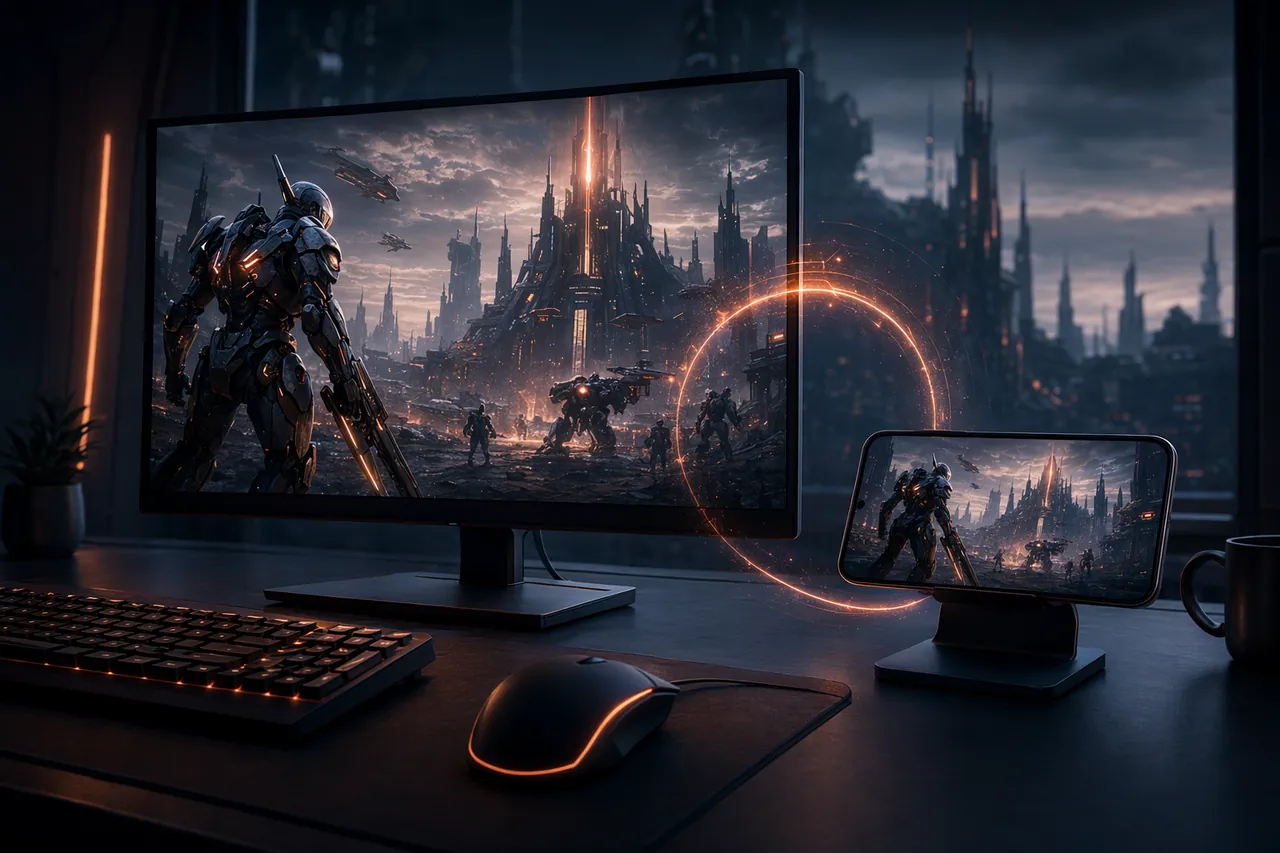
The phone build is a first-class way to play, not a stripped companion app. Grab it from Google Play or the App Store, sign into the same Netmarble account, and you are on the same character you left on PC. The honest use case is split-device play: clear your dailies and idle-friendly content on the phone during the day, then sit down at the PC client for war windows and boss fights where the input precision and frame rate actually decide outcomes.
Cross-play and cross-progression
This is the feature that makes the platform choice low-stakes: RF Online Next is genuinely cross-platform, and your character, gear, and currency follow the Netmarble account across PC, Android, and iOS. You can start on whichever device is in front of you and never lose progress switching to another. The one thing to get right on day one is the login — bind to a real Netmarble account (not a guest session) before you sink hours in, because the account is what carries you between devices, and an unbound guest character is the one way to strand your progress on a single phone.
FAQ
Do I need an emulator to play on PC?
No — there's an official native Windows client. Install that for the best performance; emulators only run the mobile build and are a fallback at best.
Where do I download it?
PC from the official RF Online Next / Netmarble website, Android from Google Play, iOS from the App Store. Avoid third-party mirrors.
Can I play on phone and continue on PC?
Yes. Cross-play and cross-progression on one Netmarble account mean the same character moves between devices without losing progress.
What are the PC system requirements?
Not officially published. Community estimates put the minimum near Windows 10 64-bit, a Core i5 (8th gen) or Ryzen 5, 8 GB RAM, a GTX 1050 Ti, and ~70 GB storage — verify in-client.
How big is the install?
Estimated in the 70 GB-plus range, normal for a UE5 game. Unverified at launch, so leave SSD headroom.
Related guides
Installed and ready to start? Run the Beginner Guide first, and if the game misbehaves on your machine check the fixes page. Playing for free is covered in the F2P guide, and the Starter Finder points you at a first Biosuit before you commit an evening to the wrong playstyle.
Sources & method. Platform support, cross-play, and cross-progression are drawn from Netmarble's launch materials and store listings. System requirements are not officially published — the minimum and recommended specs here are community estimates derived from the Unreal Engine 5 build and its 450-player battles, and are flagged as estimated throughout; the ~70 GB install size is likewise an estimate. Verify all specs and the download links in your own client and region, and we'll update as Netmarble confirms hard numbers.
Last updated: 21 June 2026 · launch week. What changed: first publish.